
Qualtrics Accessibility Guide
Qualtrics for faculty
Surveys everyone can actually answer
Collecting data and analyzing the results can be as simple or as complex as you want it to be. To ensure that the surveys that you're sending to participants meet Texas Tech University’s requirements for accessibility compliance, we've constructed the following guide, derived from Qualtrics Help resources. Following the steps below will help to improve your form's accessibility.
This guide also provides valuable information you need to identify accessible question types and to take advantage of the Qualtrics built-in checker.
Start here
-
Choose accessible question types
Qualtrics has several question types, but some are inaccessible to keyboard only or screen reader users.
Browse question types -
Review design and theme settings
The Look and feel menu lets you adjust contrast, focus, and motion to help ensure your design choices do not interfere with accessibility.
See theme settings -
Run the checker
The Qualtrics accessibility checker flags common problems. Correcting any flagged issue should always be part of your Qualtrics workflow.
Walk through it -
Try it yourself
Automated testing often misses barriers. Our manual tests walk you through checks the automated tool cannot perform.
Quick manual tests
Step 1
Choose accessible question types
Most standard, familiar question types are broadly accessible. Avoiding questions that rely on drag-and-drop, heatmaps, or other click-on-a-picture types will improve the accessibility of the overall form.
Use the matrix below to identify which question types to avoid and which ones need additional context to meet our accessibility requirements. Search by name or filter by status.
New and legacy survey experiences
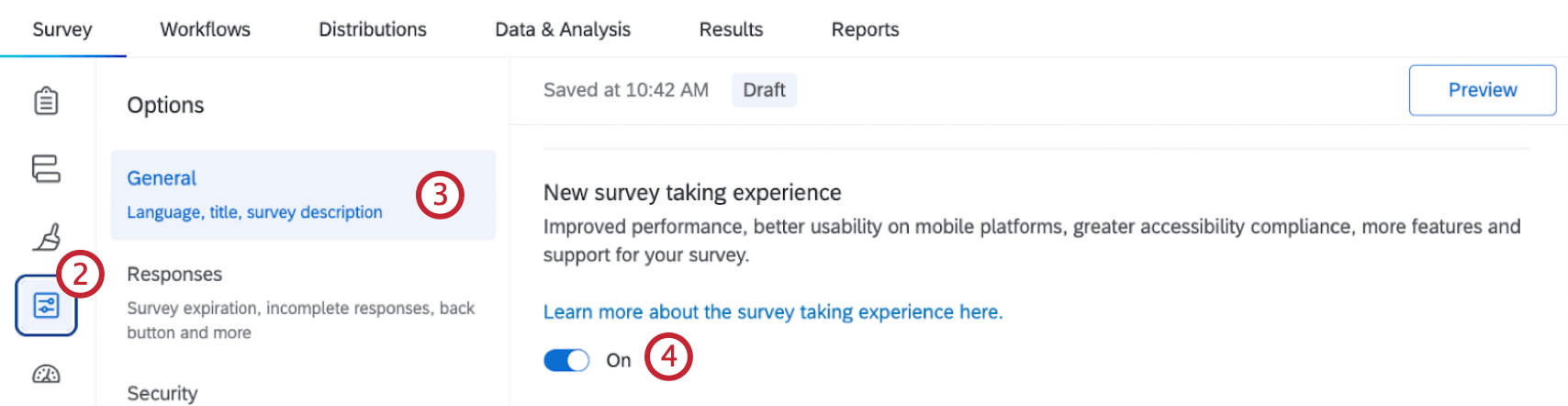
As of June 3, 2026, all new Qualtrics surveys use the New Survey Taking Experience by default, and the statuses below reflect that experience. Surveys created before that date, and surveys copied or imported from them, may still use the legacy experience, where more question types are flagged as inaccessible. To confirm which experience a survey uses, open Survey options and review the General tab.
Showing all question types.
-
Descriptive text
AccessibleProvides instructions and consent language. Any images accompanying the descriptive text must include an alternate description or alt text.
-
Multiple choice (all formats)
AccessibleEvery included format passes. If you use the dropdown version, mention how many options are in the list, as in "Choose one of 6 options."
-
Net Promoter Score
AccessiblePasses, but screen readers do not read the labels. Include what 0 (Not at all likely) and 10 (Extremely likely) mean in the question text.
-
Text entry (all formats)
AccessiblePasses. Specify desired formats, like MM/DD/YYYY, in the question.
-
Form field
AccessiblePasses. Give each field a real label, like "Email address," instead of using placeholder text.
-
Side by side
AccessiblePasses. Use short, specific column headings to help users using screen reading software.
-
Slider
AccessibleThe standard slider and the bar slider both pass. The graphic slider should be avoided.
-
Number scale
AccessiblePasses. Available only in the New Survey Taking Experience. Include what the lowest and highest numbers mean in the question text.
-
File upload
AccessibleQualtrics confirms file uploading meets WCAG 2.1. As a best practice, specify which file types and sizes you accept.
-
Meta info and Captcha verification (V2)
AccessibleBoth pass. Use Captcha only when necessary, as it adds a step for every respondent.
-
Matrix table
Use with conditionsIn the New Survey Taking Experience, Likert, rank order, constant sum, text entry, and profile matrices pass. Likert matrices automatically switch to a mobile-friendly layout on small screens. Keep Mobile friendly turned on for all matrix types. In legacy surveys, Likert matrices are flagged as inaccessible. Bipolar, MaxDiff, carousel, and drag-and-drop matrices should be avoided.
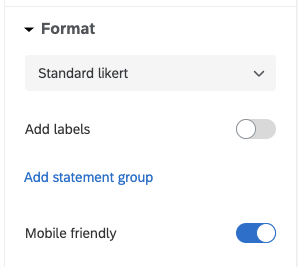
The Mobile friendly toggle in the Format section. Screenshot courtesy of Qualtrics Support -
Rank order
Use with conditionsIn the New Survey Taking Experience, rank order is available only in the drag-and-drop format, which Qualtrics has updated to meet accessibility standards. Hands-on testing at other universities identified issues with this question type, so test it with a keyboard before use, or use a different question type if you can. In legacy surveys, use only the text box, graphic, or radio button formats.
-
Constant sum
Use with conditionsUse the choices (text entry) format. The sliders and bars formats are not accessible and are not available in the New Survey Taking Experience.
-
Drill down
Use with conditionsPasses, but as it is built from dropdowns, tell users how many choices each level has.
-
Timing
Use with conditionsTiming is fine for recording how long someone spends on a page. Leave auto-advance off to allow users to progress at their own pace.
-
Signature
Use with conditionsUse only in the New Survey Taking Experience, where users can select Type to enter their name instead of drawing a signature. Leave the Type option available. In legacy surveys, the signature question is not accessible.
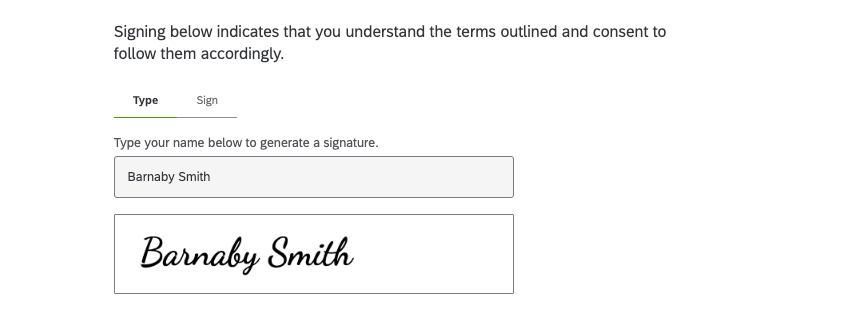
The Type option generates a signature from a typed name. Screenshot courtesy of Qualtrics Support Alternative: Use a typed name in a text entry field in addition to a consent checkbox, if your IRB protocol allows it.
-
Calendar
Use with conditionsQualtrics has updated the calendar question in the New Survey Taking Experience, but hands-on testing at other universities identified issues with it. Test it with a keyboard before use, and state the expected date format in the question text.
Alternative: Use a text entry question that specifies the date format, such as MM/DD/YYYY.
-
Video response
Use with conditionsQualtrics has updated the video response question in the New Survey Taking Experience, but recording video remains a barrier for many users. Always offer another way to respond.
Alternative: Provide a file upload or text entry option alongside the video question or in its place.
-
Matrix: bipolar, MaxDiff, carousel, drag and drop
Not accessibleLikert matrices are also flagged as inaccessible in legacy surveys.
Alternative: Use a Likert matrix in the New Survey Taking Experience, or split the original question into separate multiple choice questions, one per statement, and group them together in a single block.
-
Rank order: drag and drop or select box (legacy surveys only)
Not accessibleAlternative: Use the text box or radio button format, upgrade the survey to the New Survey Taking Experience, or use a multiple choice question for each position ("Which is your first choice?").
-
Constant sum: sliders or bars (legacy surveys only)
Not accessibleAlternative: Use the constant sum choices (text entry) format instead.
-
Pick, group, and rank
Not accessibleAlternative: Ask one multiple choice question per item ("Which group does this belong in?"). Add a rank order question if you need rankings.
-
Hot spot and Heat map (legacy surveys only)
Not accessibleAlternative: Show the image with thorough alt text, then list the regions by name in a multiple choice question.
-
Graphic slider (legacy surveys only)
Not accessibleAlternative: Use a standard slider or a multiple choice rating scale.
-
Highlight (legacy surveys only)
Not accessibleAlternative: List the phrases as choices in a multiple choice question that permits multiple answers.
Nothing matches that search. Try another word, or select All.
Step 2
Set up the theme
Theme settings are under Look and feel in the survey editor.
Layout
The New Survey Taking Experience, previously called the Simple layout, provides a focus outline users can see without relying on color. As of June 3, 2026, the New Survey Taking Experience is turned on by default for any new survey.
To upgrade an existing survey, open Look and feel, select the Layout tab, then select the new survey taking experience tile at the top of the panel.
Note: Surveys copied or imported from older surveys retain their legacy features until they are upgraded.
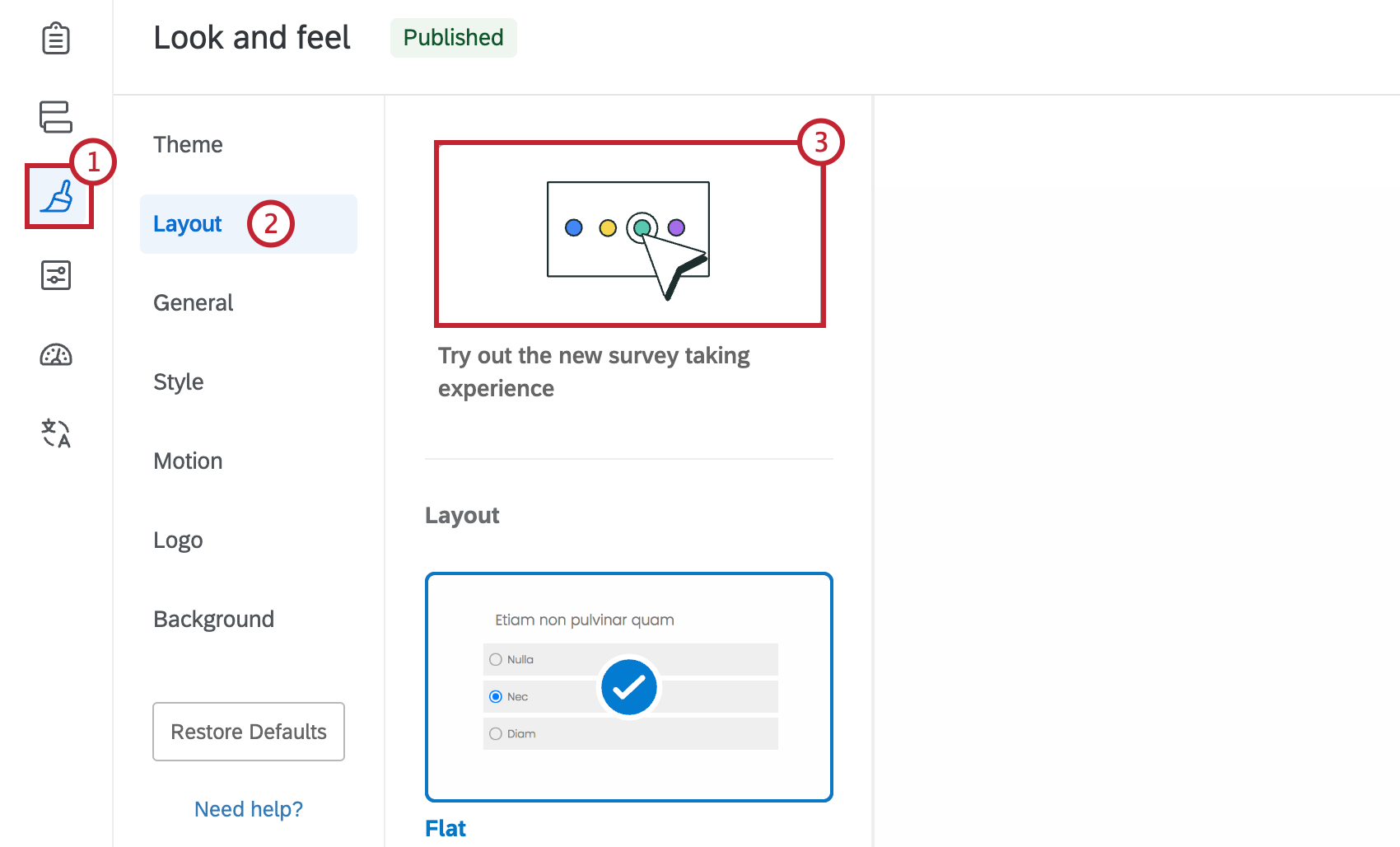
Some features and question types are not available in the New Survey Taking Experience. You can return to the legacy experience in Survey options on the General tab. For legacy surveys, checking focus is your responsibility. Qualtrics maintains a list of features the New Survey Taking Experience does not support.
General
- Turn off the progress bar to avoid accessibility issues. Instead, turn on Question numbers in Survey options and consider writing "Question X of 10" into your questions. (The accessibility checker calls question numbers “export tags.” If it suggests “Enable survey option to show export tags,” turn on Question numbers.)
- Use an H1 header. A proper H1 tag acts as a page title for screen reader users. Open the header in the HTML view of the rich content editor and paste in the snippet from the writing tips below.
- Give your logo alt text. If you add a logo to the header or footer, describe it in the alt text, such as "Texas Tech University." For multilingual surveys, also translate the alt text in the translation window.
Style
- Set Foreground contrast to High.
- Tab through a preview. If the focus outline is difficult to see, adjust the Primary and Secondary colors to increase visibility.
- Regular text needs a contrast ratio of at least 4.5:1 against its background, and large text needs 3:1. Lighter shades of red or gray on a white background are often inaccessible.
- Keep the default font size or larger.
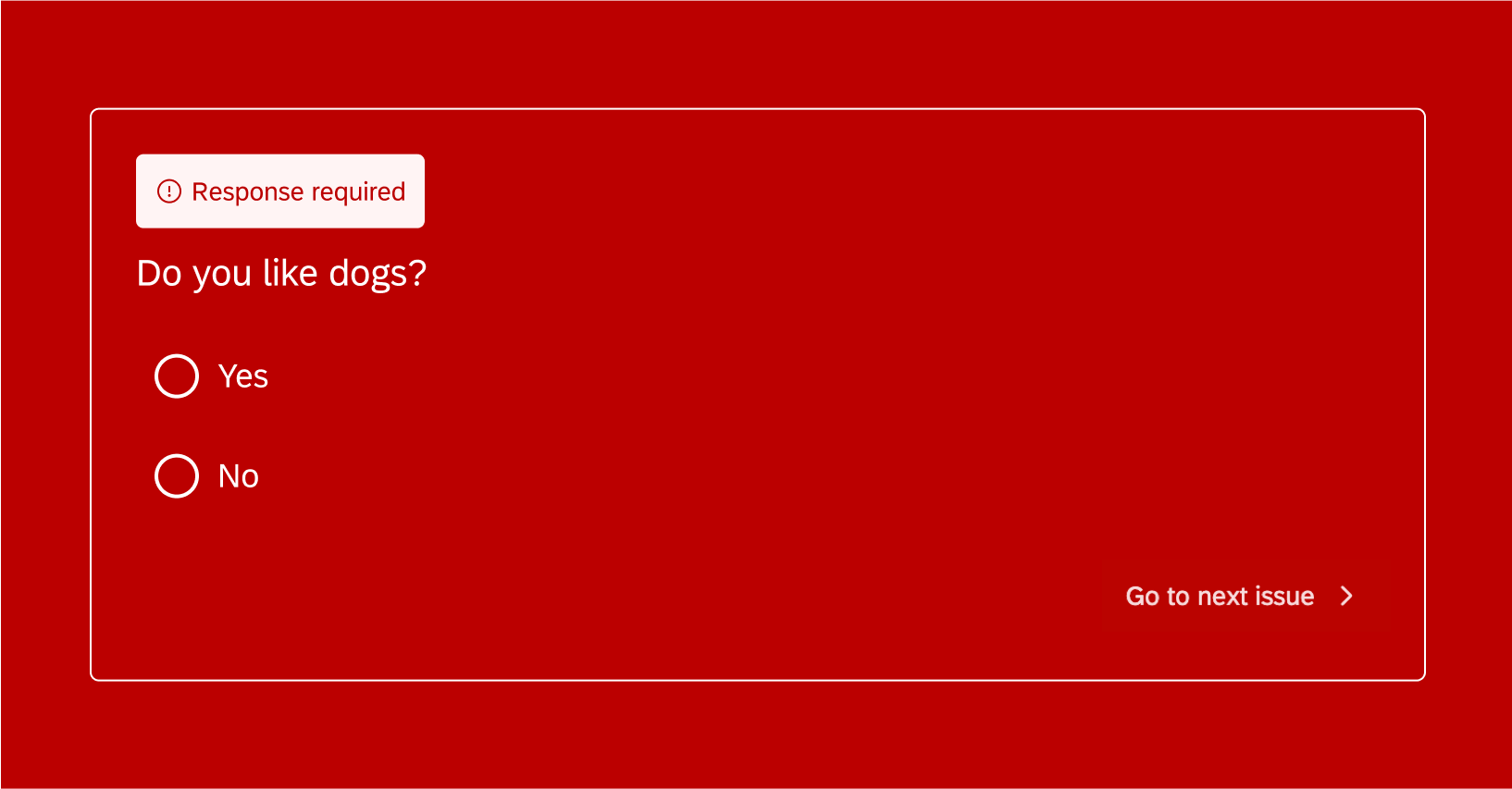
When you change background or theme colors, the New Survey Taking Experience automatically adjusts text and alert colors to maintain contrast. Review the result in Preview to confirm.
Motion
- Turn off Autoadvance on questions. Pages should not move on by themselves.
- Set the page transition to None.
The checker does not evaluate color
Check Survey Accessibility reviews question types and survey options. Colors, contrast, and font size are not evaluated, so review them manually. Report issues with library themes to your Brand Administrator.
Building accessible surveys
The accessibility checker does not review question wording. The following tips can help make your survey easier to navigate and deliver a more accessible experience.
-
01 Provide contact information to get assistance
Include help text at the start of every survey explaining how participants can contact someone if they have issues completing the survey. Respondents should be able to report issues or to request an alternative way to submit their responses.
Example: Having trouble with this survey? Contact [your name] at [your email] and we'll find another way for you to respond. -
02 Describe your images
Add alternative text description or "alt text" to every image in the Image Properties. Alt text is a concise description of the image's content and function. Qualtrics does not have the ability to mark an image as decorative, so omit images that are purely decorative. Learn more about writing good alt text by reading our Alt Text Decision Tree guide.
-
03 Identify required questions or questions with required formats
If a question requires a response, or requires the response in a specific format through validation settings, state that in the question text so users know how to answer before proceeding.
Example: (This question is required.)The New Survey Taking Experience marks required questions with an asterisk and summarizes errors at the top of the page. Stating the requirement in words still helps users who may miss the asterisk.
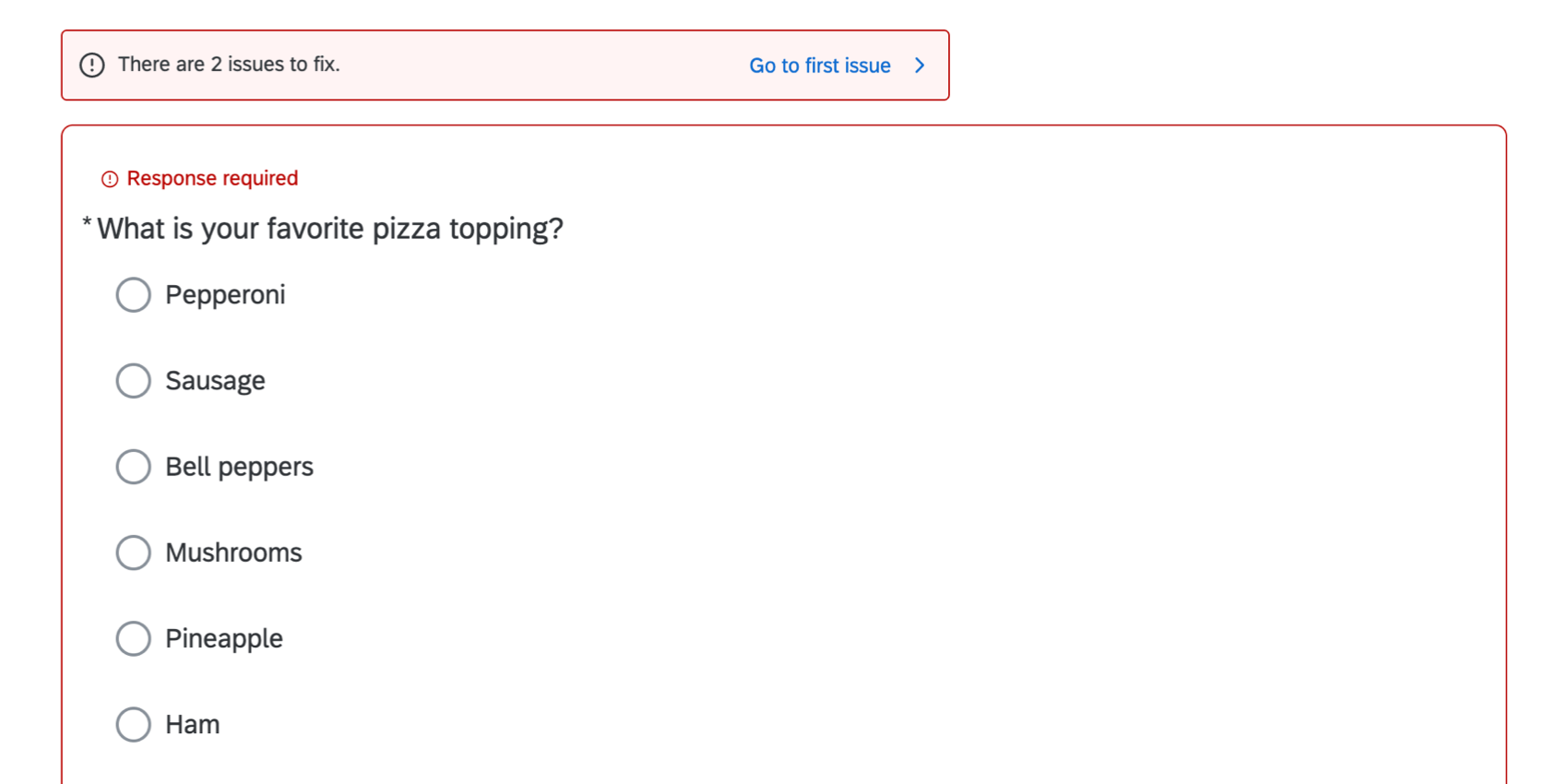
Required questions show an asterisk and an error summary. Screenshot courtesy of Qualtrics Support -
04 Identify the number of response choices
Qualtrics depends on browser and operating system defaults for keyboard and screen reader behavior. When someone moves through a question’s answers, one browser may announce the position and total (“radio button 1 of 5”), while another reads only the answer text without the total. To give every survey taker the same information up front, put the number of options in the question.
Example: Select one of the following 8 options. -
05 Put the scale in words
Scale labels, including the Net Promoter Score (NPS) end labels, are not announced. Explain the scale in the question.
Example: On a scale from 0 to 10, where 0 means not at all likely and 10 means extremely likely, how likely are you to recommend this course to a friend? -
06 Give the survey a heading
In the header's HTML view, wrap your survey title in an H1 tag.
Example:<h1>Your Survey Title</h1> -
07 Paste plain text
Text copied from Word or a web page may include formatting that could interfere with screen readers. Paste with Ctrl+Shift+V on Windows or Cmd+Shift+V on a Mac, or remove unnecessary formatting with: Tools, Review, Strip formatting.
-
08 Put words on the buttons
By default, the navigation buttons display arrow symbols (→ and ←), which screen readers may announce inconsistently or not at all. Replace them with words such as Next and Back in Look and feel, under General, using the Next Button Text and Previous Button Text fields.
-
09 Name the survey
The survey title appears in the browser tab, and it is the first thing a screen reader announces. Replace the default title with a more descriptive one that helps users identify the survey's purpose.
-
10 Do not rely on color to convey meaning
Color should not be the only way that meaning is communicated. Some users cannot distinguish certain colors, so pair color with text, patterns, or icons.
-
11 Break long surveys into separate pages
Survey pages do not use headings that screen reader users can jump between, so moving through a long page can be slow. Add page breaks to divide long surveys into shorter pages with fewer questions on each.
-
12 Set expectations
State the estimated completion time at the beginning of the survey, and keep the survey as brief as its purpose allows. Users of assistive technology may need more time to complete a survey, and an accurate estimate helps them plan accordingly. Conclude with a clear end-of-survey message confirming that responses have been submitted.
Example: This survey has 12 questions and takes about 5 minutes. -
13 Caption your videos
Any video in a survey needs accurate captions, and audio needs a transcript. See Accessible Audio & Video for guidance on captions and transcripts.
Step 3
Run the checker
The Check Survey Accessibility tool identifies question types and survey settings that do not meet WCAG 2.0 AA and links directly to each one. Results appear in the same window as ExpertReview, which also provides general recommendations for improving survey quality.
-
Open the checker
On the Survey tab, select Tools, point to Review, and select Check survey accessibility.
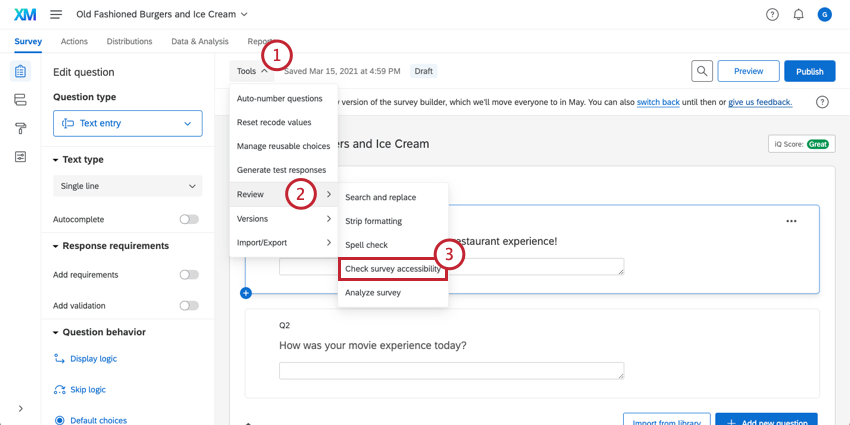
Tools, then Review, then Check survey accessibility. Screenshot courtesy of Qualtrics Support -
Look for Accessibility: WCAG
Accessibility issues are listed under the Accessibility: WCAG heading. Expand Affected questions to view each question that requires attention.
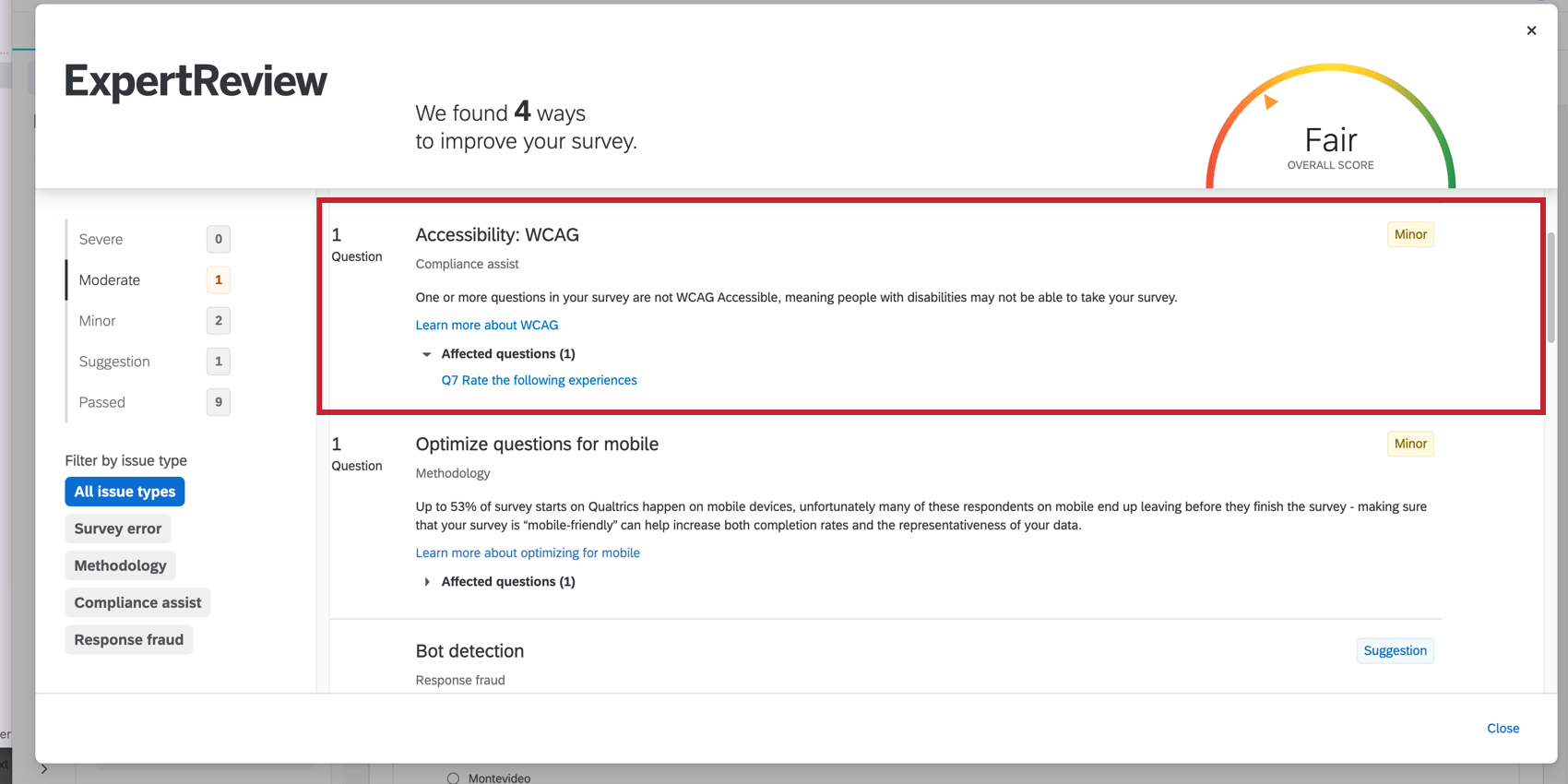
Each flagged question is listed under Affected questions. Screenshot courtesy of Qualtrics Support -
Select an issue
Select a question in the list to open it directly in the survey editor. Recommendations that apply to the entire survey, rather than a single question, typically open Survey options or Look and feel.
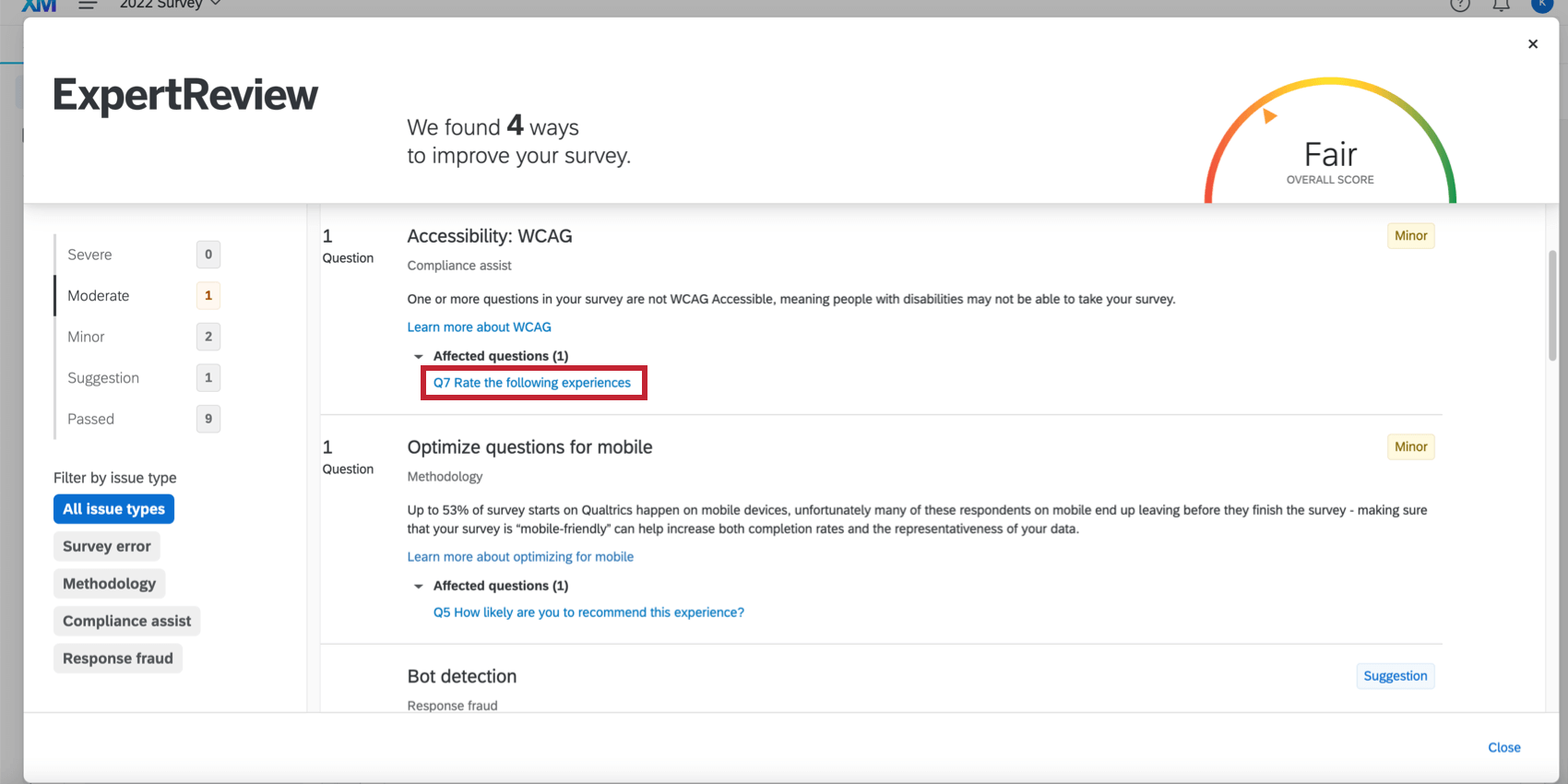
Select a flagged question to go right to it. Screenshot courtesy of Qualtrics Support -
Correct issues and rescan
Change each flagged question to an accessible question type or adjust the related survey setting, then run the checker again. Once the Accessibility: WCAG item no longer appears, select Close and continue to the manual tests in Step 4.
Step 4
Manual tests
Why the checker isn't the last word
The Check Survey Accessibility tool tests surveys against WCAG 2.0 AA and Section 508. Qualtrics states that the New Survey Taking Experience meets WCAG 2.2 AA for key features, but it also notes that keyboard and screen reader behavior varies by browser and operating system, and that meeting your institution's standard is up to the survey owner. Texas Tech follows WCAG 2.1 AA, so manual testing remains part of the process.
-
Keyboard-only test
WCAG 2.1.1 and 2.4.7Answer each question using Tab, Shift+Tab, the arrow keys, and Space. The focus outline should remain visible on every element.
-
Reflow at 400 percent zoom
WCAG 1.4.10 ReflowSet the browser zoom to 400 percent, or open the survey preview on a mobile phone. All content should fit within the width of the screen. If any question requires horizontal scrolling to read or answer, the survey does not meet this requirement.
-
Form control contrast
WCAG 1.4.11 Non-text contrastRadio buttons, checkboxes, text box borders, slider tracks, and the focus outline need a 3:1 contrast ratio against the background.
-
Screen orientation
WCAG 1.3.4 OrientationThe survey should work upright and sideways. Some people have their phone or tablet mounted in one position.
-
Contact information fields
WCAG 1.3.5 Identify input purposeWhen you ask for a name, email, or phone number, a form field with a standard label lets browsers and assistive tools fill it in for people.
-
Visible labels match accessible names
WCAG 2.5.3 Label in nameButton text should match what people see. Someone using voice control will say “click Next” because that's what the button says.
-
Screen reader check
Screen reader spot checkTry a page with NVDA (free for Windows) or VoiceOver (built into Macs and iPhones). You should hear each question, its choices, and any required-question note.
Accessibility checklist
Use the following checklist to work through each step of making your survey accessible. Your progress is saved in this browser, and the checklist can be printed for your records.
Check each item as you finish it.
Content
Theme and options
Testing
More from Qualtrics
- Check Survey AccessibilityThe full Qualtrics article behind this page
- New Survey Taking ExperienceFeatures, updates, and unsupported question types
- ExpertReviewQuality and accessibility suggestions for your survey
- Insert a GraphicWhere to add alt text to images
- Mobile-friendly matrix tablesSetting up accessible matrices
- ValidationForce response, request response, and custom rules
- Qualtrics accessibility commitmentAccessibility conformance reports (VPATs) for Qualtrics products
More from Texas Tech
Digital Accessibility
-
Address
Texas Tech University, 2500 Broadway, Lubbock, TX 79409 -
Phone
806.742.3587 -
Email
digitalaccessibility@ttu.edu