Instagram · Facebook · X/Twitter · LinkedIn
Prepared by Jeff Luman and Angela Ursone
Texas Tech University
The World Health Organization estimates that 2.5 billion people need assistive technology today — a number projected to reach 3.5 billion by 2050. When we post without thinking about accessibility, we exclude a significant share of our audience from the conversation.
Accessible social media is also better social media. Research shows 75–80% of social video is watched on mute — captions help everyone. Camel-case hashtags are easier for all readers. Descriptive alt text improves SEO. Inclusive design is smart design.
Instagram
Posts, Reels & Stories
Facebook
Posts & Videos
X / Twitter
Posts & Media
LinkedIn
Professional Posts
Master these rules before diving into any specific platform. They apply everywhere.
✅ Camel Case Hashtags
Screen readers announce hashtags as a single run-on word unless each word starts with a capital letter. Camel case makes hashtags readable for everyone, not just screen reader users.
✅ Limit & Placement of Hashtags
Screen readers read every hashtag aloud in sequence. A post with 15 hashtags forces assistive technology users to sit through all 15. Keep hashtags to a relevant few, and place them at the end of your caption or in the first comment. The algorithm still picks them up from comments.
✅ Emoji Etiquette
Screen readers announce the full emoji description aloud: 🎉 becomes "party popper." Use emojis sparingly and always place them at the end of your text — never at the start or as decorative bullet points, where they disrupt reading flow.
✅ Punctuation & Short URLs
Proper punctuation creates the pauses screen readers rely on. Without it, captions run together as one unbroken stream. Screen readers also read every character of a raw URL aloud — use a link shortener or place the URL alongside a descriptive sentence.
🚫 ASCII Art & Text-Based Images
ASCII art — images constructed from keyboard characters — is completely inaccessible to screen readers. A simple smiley face :-) becomes "colon hyphen close-parenthesis." Complex ASCII art becomes an unintelligible string of symbol names.
If you must use ASCII art: wrap it in a container with aria-hidden="true" and provide a plain-text alternative.
🚫 Non-Standard Unicode "Fancy" Text
Using Unicode math or symbol blocks to create stylized text — 𝕿𝖍𝖎𝖘 𝕭𝖔𝖑𝖉, 𝘛𝘩𝘪𝘴 𝘐𝘵𝘢𝘭𝘪𝘤, or 𝓒𝓾𝓻𝓼𝓲𝓿𝓮 — is often inaccessible. Screen readers either skip them, announce their Unicode name, or produce garbled output.
The same applies to using Greek or Cyrillic letters as Latin look-alikes. Always use standard Latin characters for readable text.
Alt text describes your image to people who cannot see it. Good alt text is concise, accurate, and contextual — it tells the user what the image shows and why it matters here.
The Rules
Same Image — Three Levels of Quality
Key question: If you removed this image and replaced it with the alt text, would the reader get the same information?
Follow these three steps every time you post a photo.

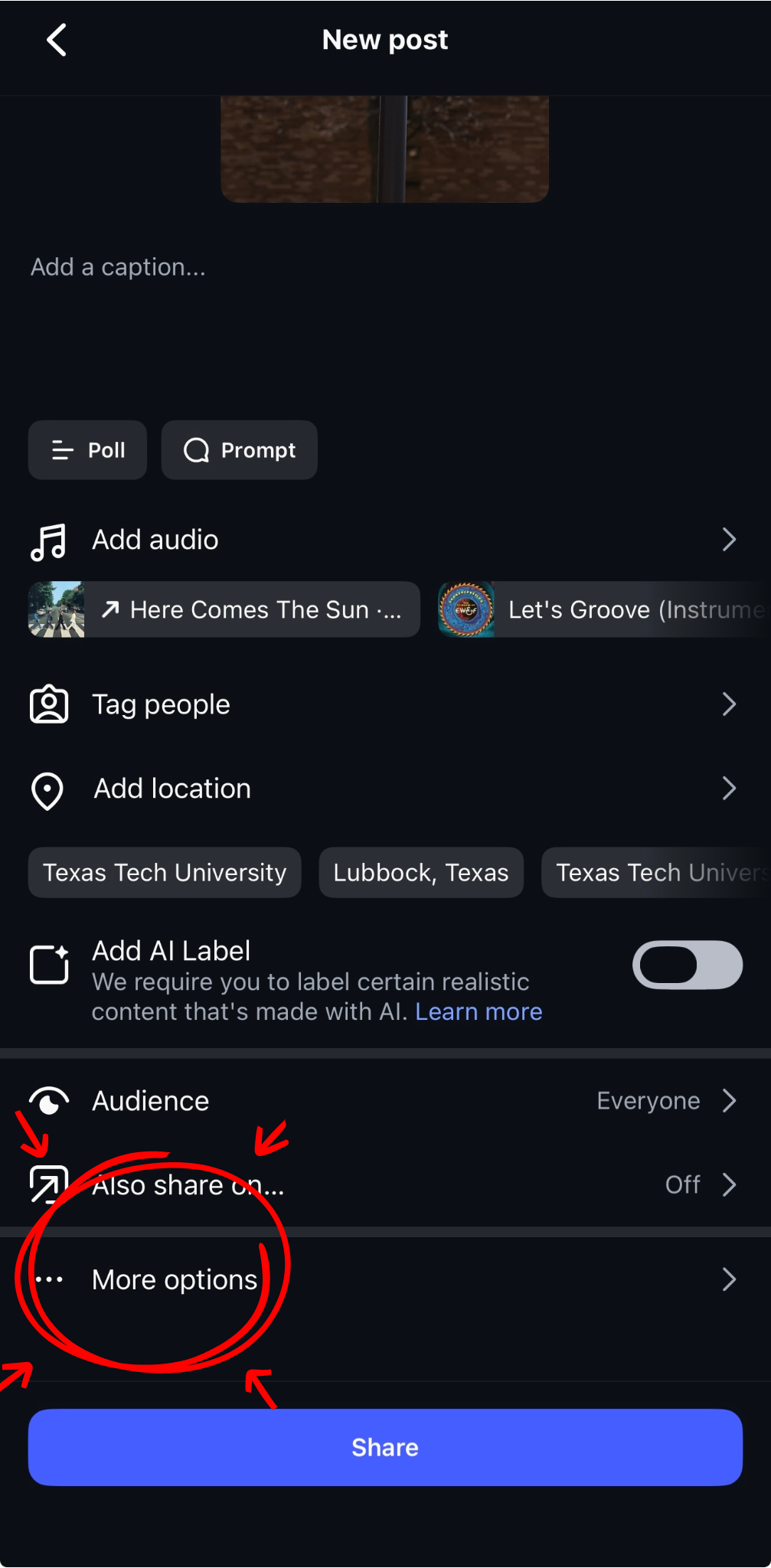
Open More Options
After choosing your photo and writing your caption, tap "… More options" near the bottom of the New Post screen — just above the Share button. This is where all accessibility settings live.

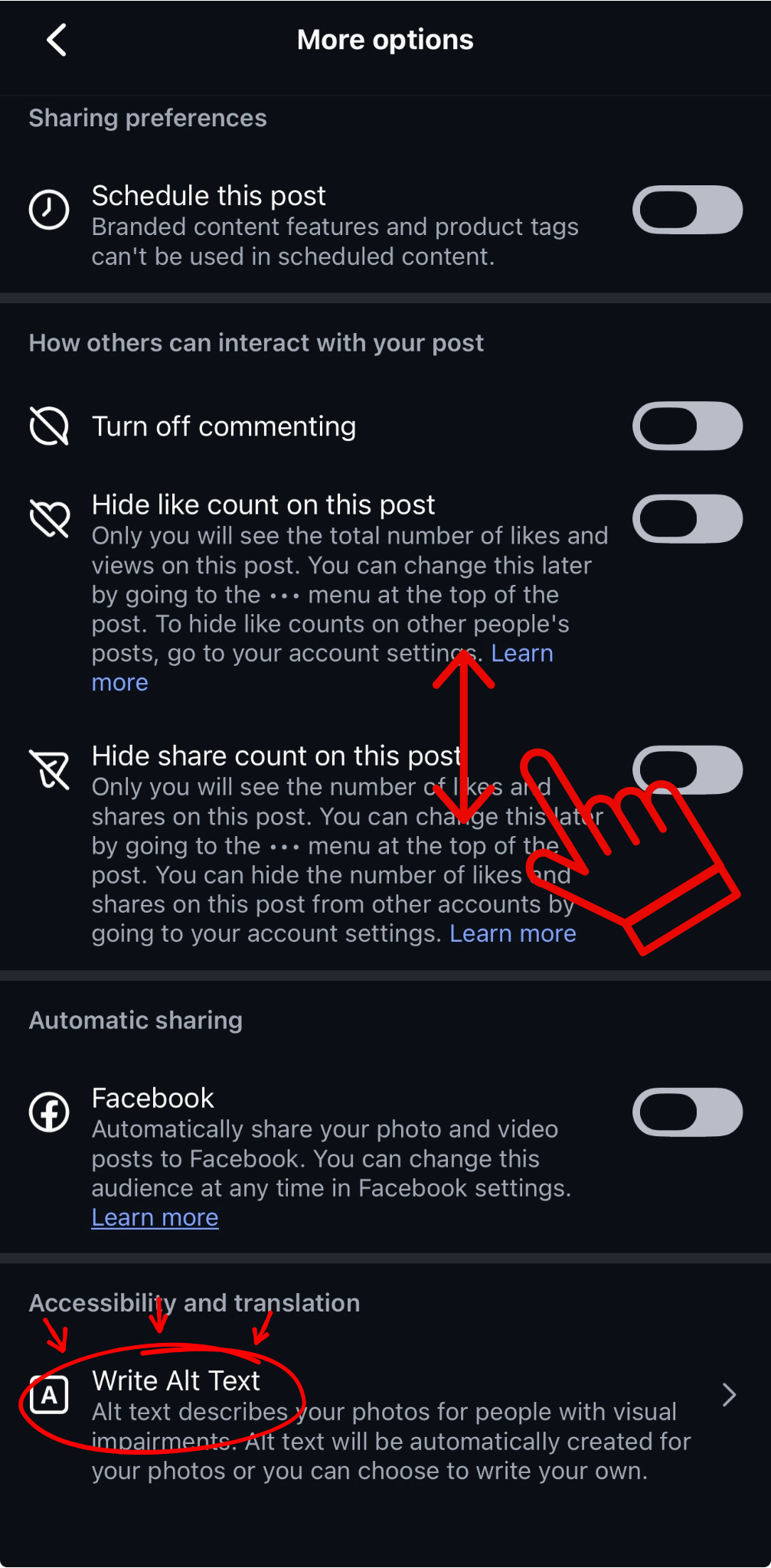
Find Write Alt Text
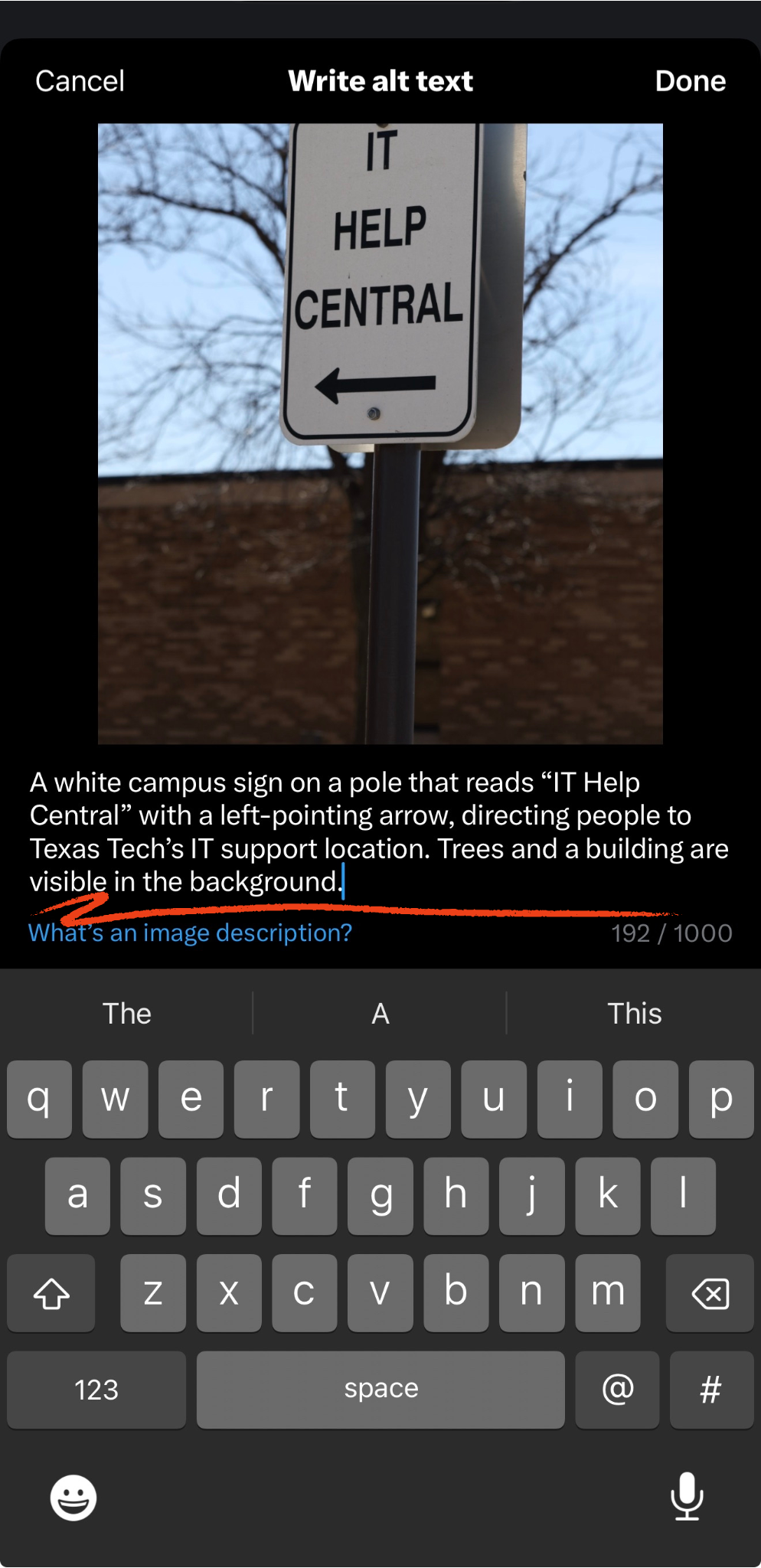
Scroll to the Accessibility and translation section. Tap "Write Alt Text." Instagram will auto-generate text if you don't write your own — but you should always write your own.

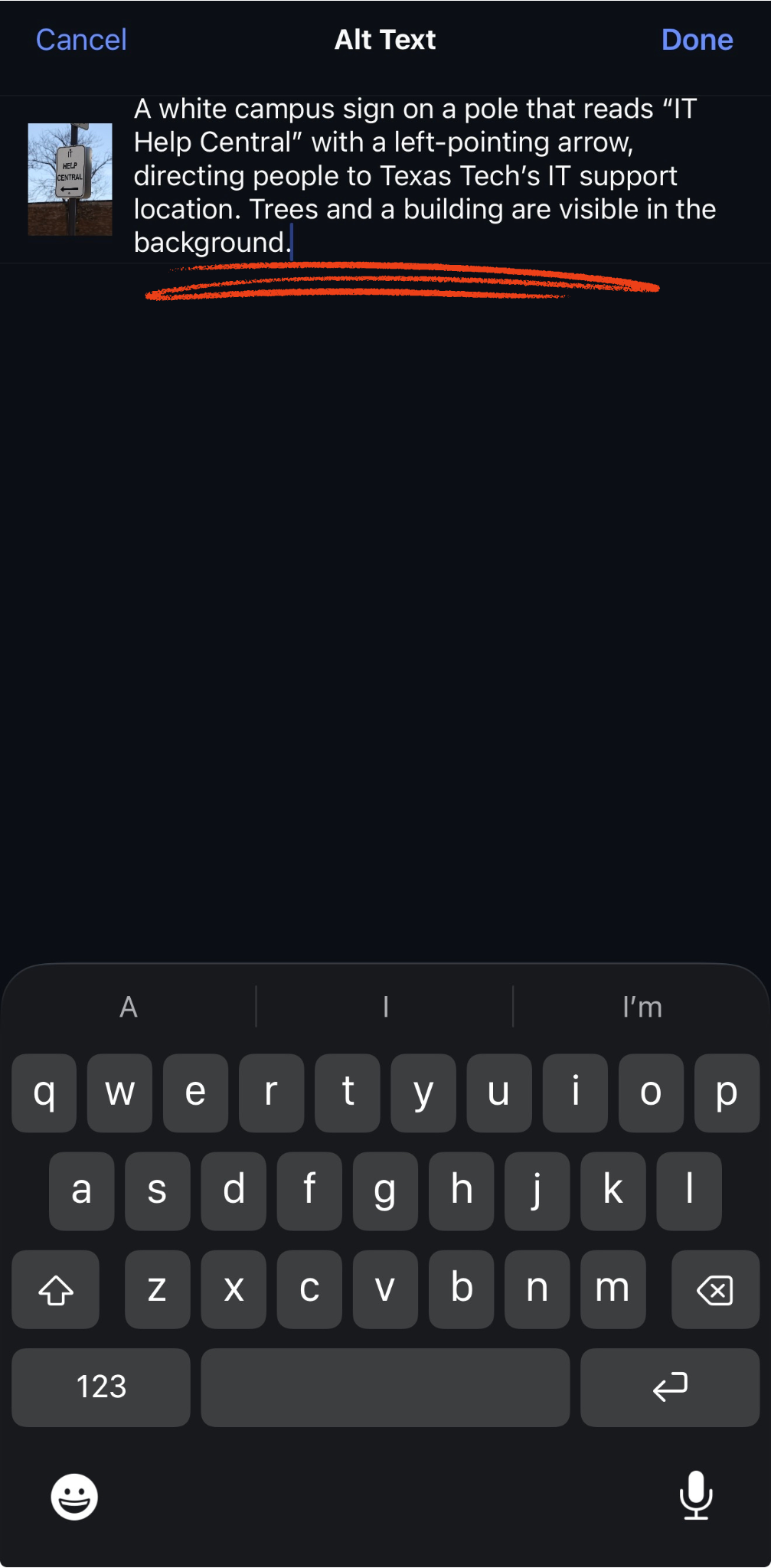
Write Your Description
Type a meaningful description (up to 1,000 characters). Tap Done, then post.
Carousel posts: Alt text must be added separately for each image. | Existing posts: Tap ⋯ → Edit → tap "Edit Alt Text" on the image. | Source: Instagram Help Center
Instagram auto-generates captions via the Captions sticker. You must review them — auto-captions are not always accurate.

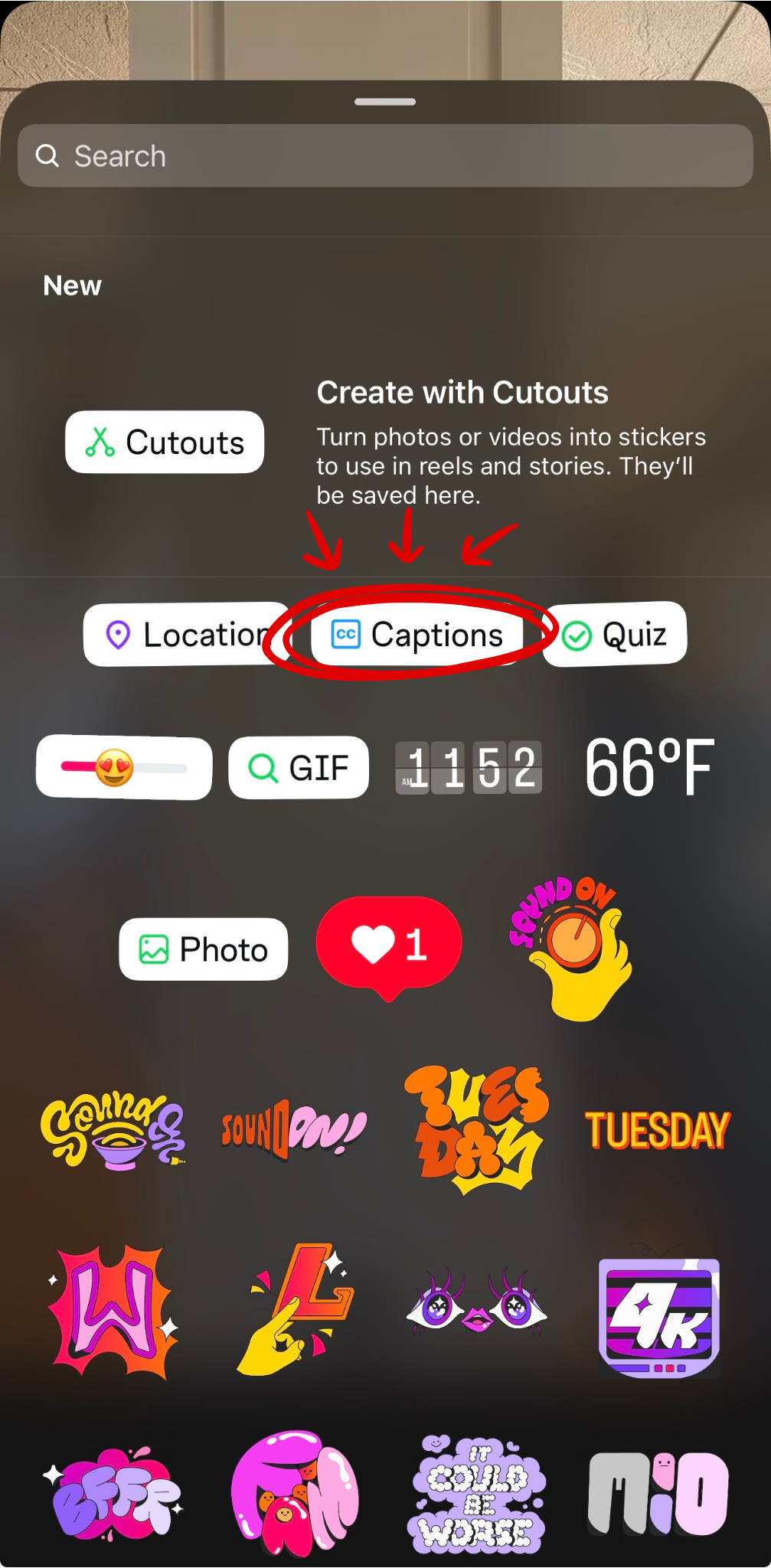
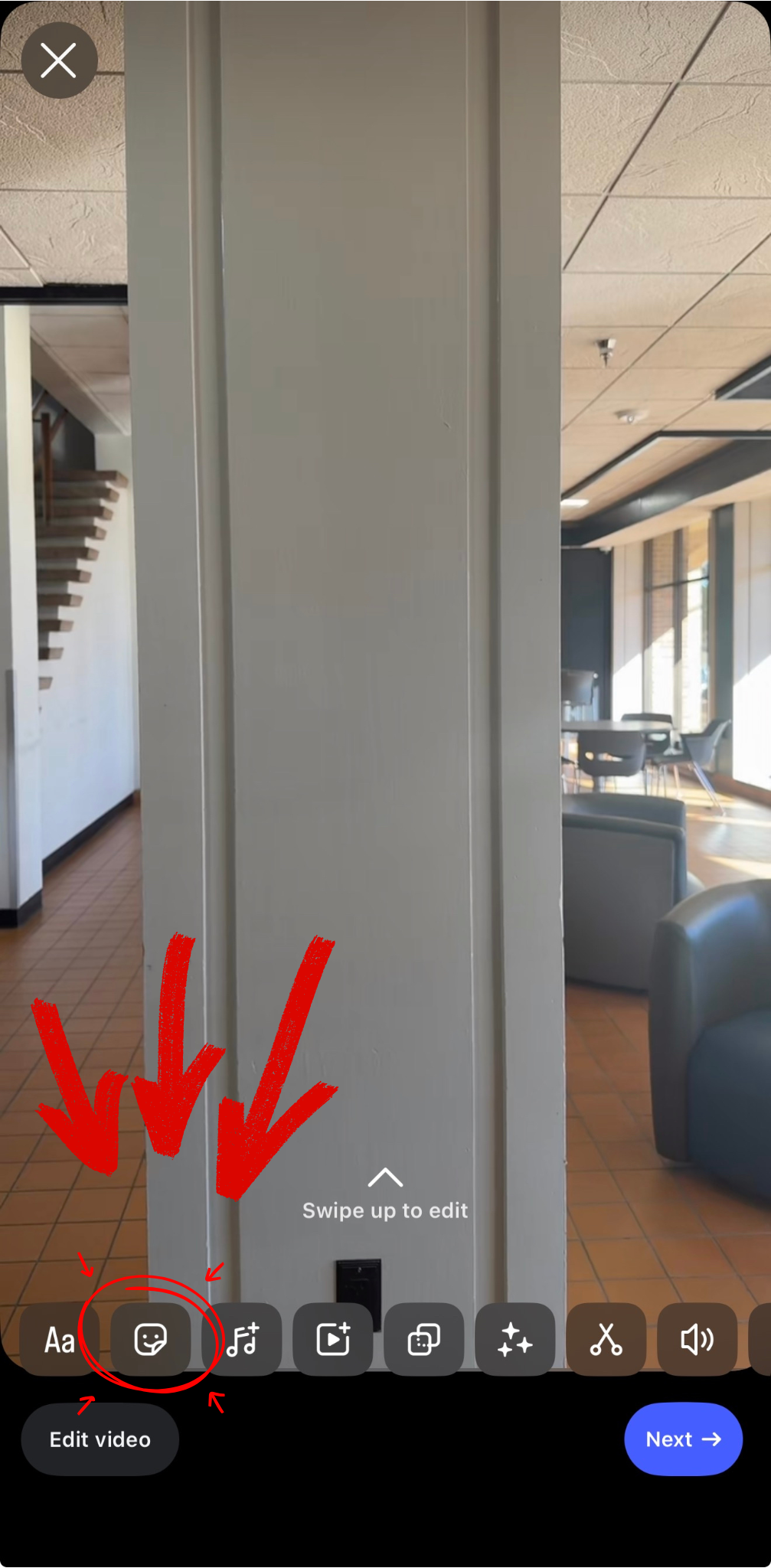
Tap the Sticker Icon
After uploading your video, tap the sticker icon (smiley face with a +) in the editing toolbar. This opens the full sticker menu.

Select the Captions Sticker
Tap Captions from the top row. Instagram will automatically transcribe the spoken audio. This may take a few seconds.

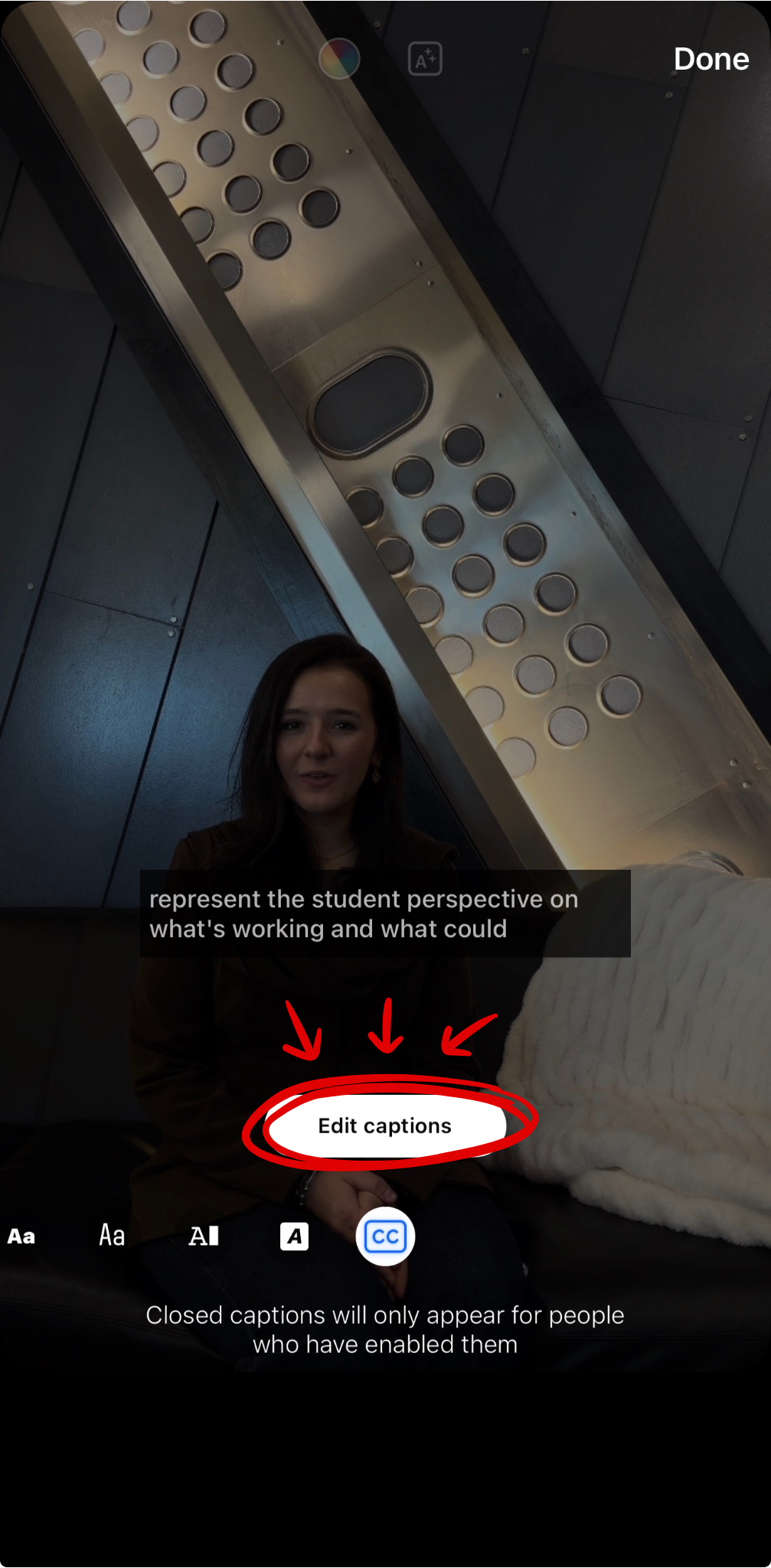
Review, Edit & Post
Read through every caption word. Tap any incorrect word to correct it. The CC icon toggles between open captions (always visible) and closed captions (viewer-controlled).
⚠ Auto-captions are not always accurate. Edit before posting. For higher-quality captions: CapCut, Adobe Premiere, or Canva.
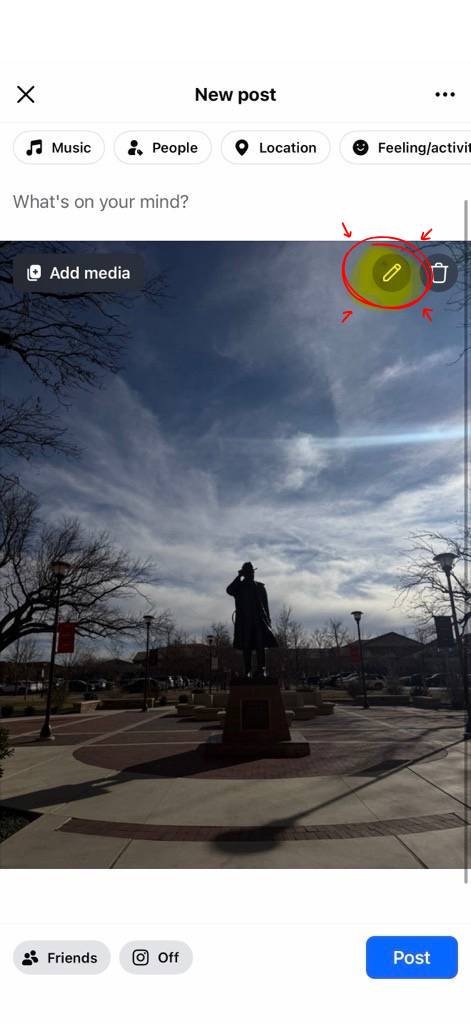
Facebook uses a pencil icon workflow. The alt text option is a couple of taps in from the compose screen.

Tap the Pencil Icon
After uploading your photo to a new post, a pencil (edit) icon appears in the top-right corner of the image thumbnail. Tap it to open the image editing options.

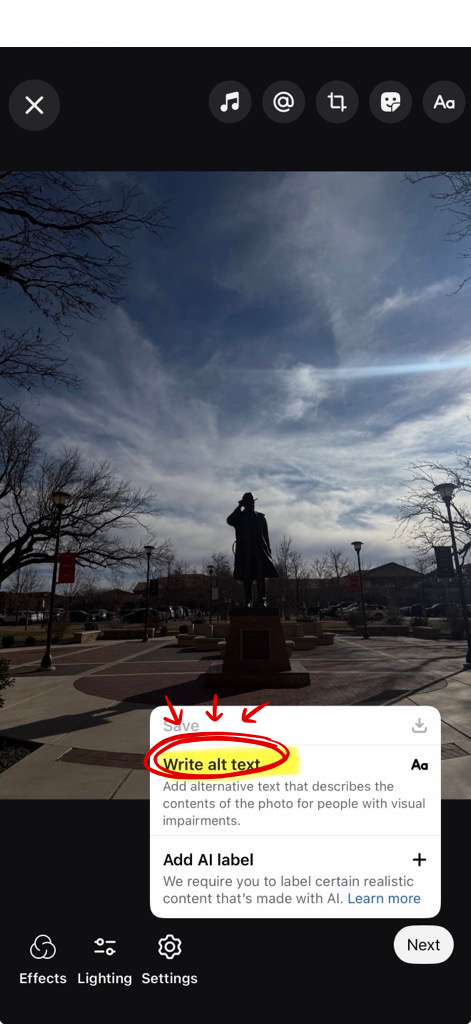
Open Edit Alt Text
A settings gear icon appears at the bottom-left of the image. Tap it, then select "Edit Alt Text." Facebook auto-generates alt text using AI object recognition — review and replace it with your own.

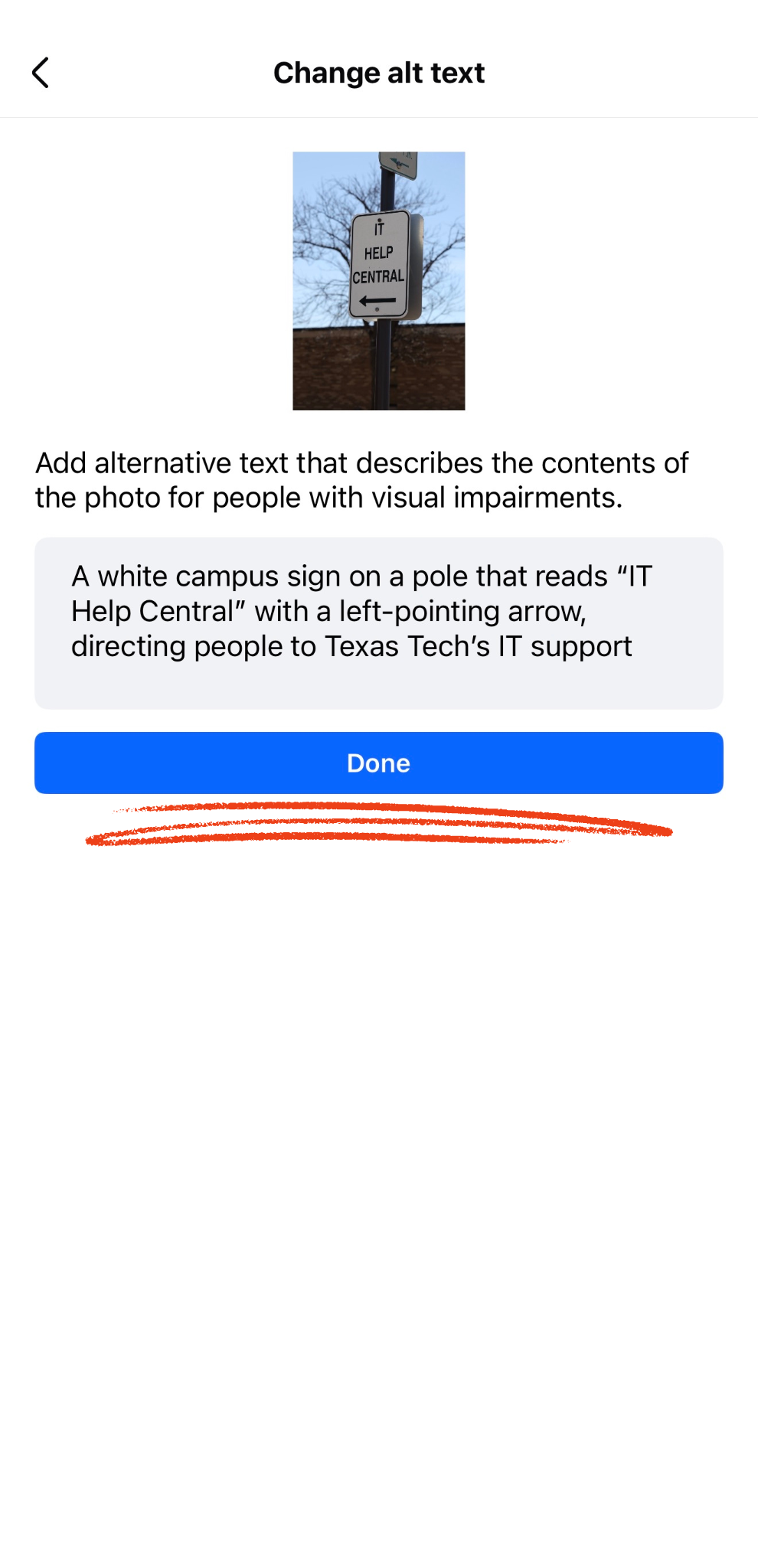
Write Your Description & Save
Type a meaningful description in the text field. Tap Save, then publish your post. Always clear the AI pre-filled text and write your own.
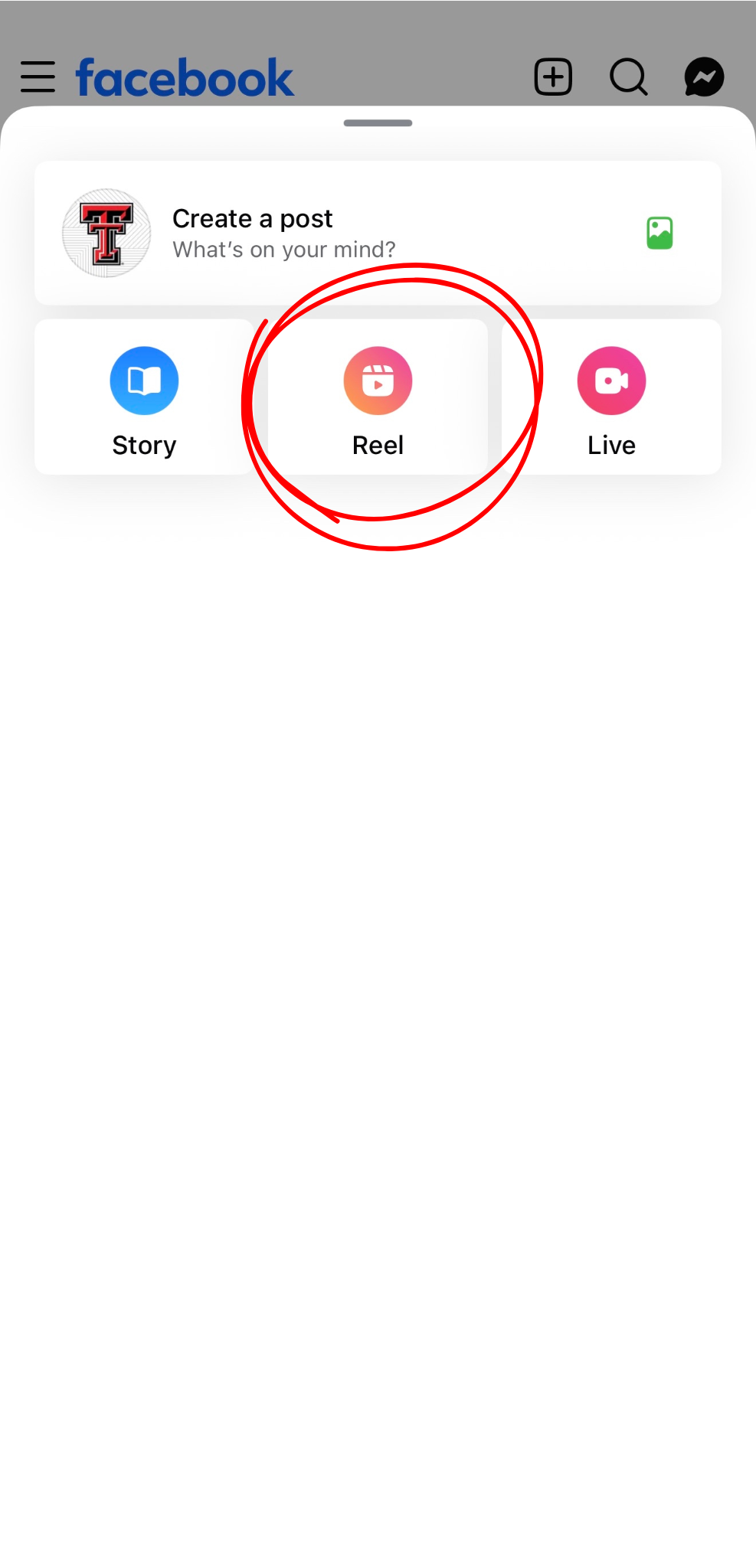
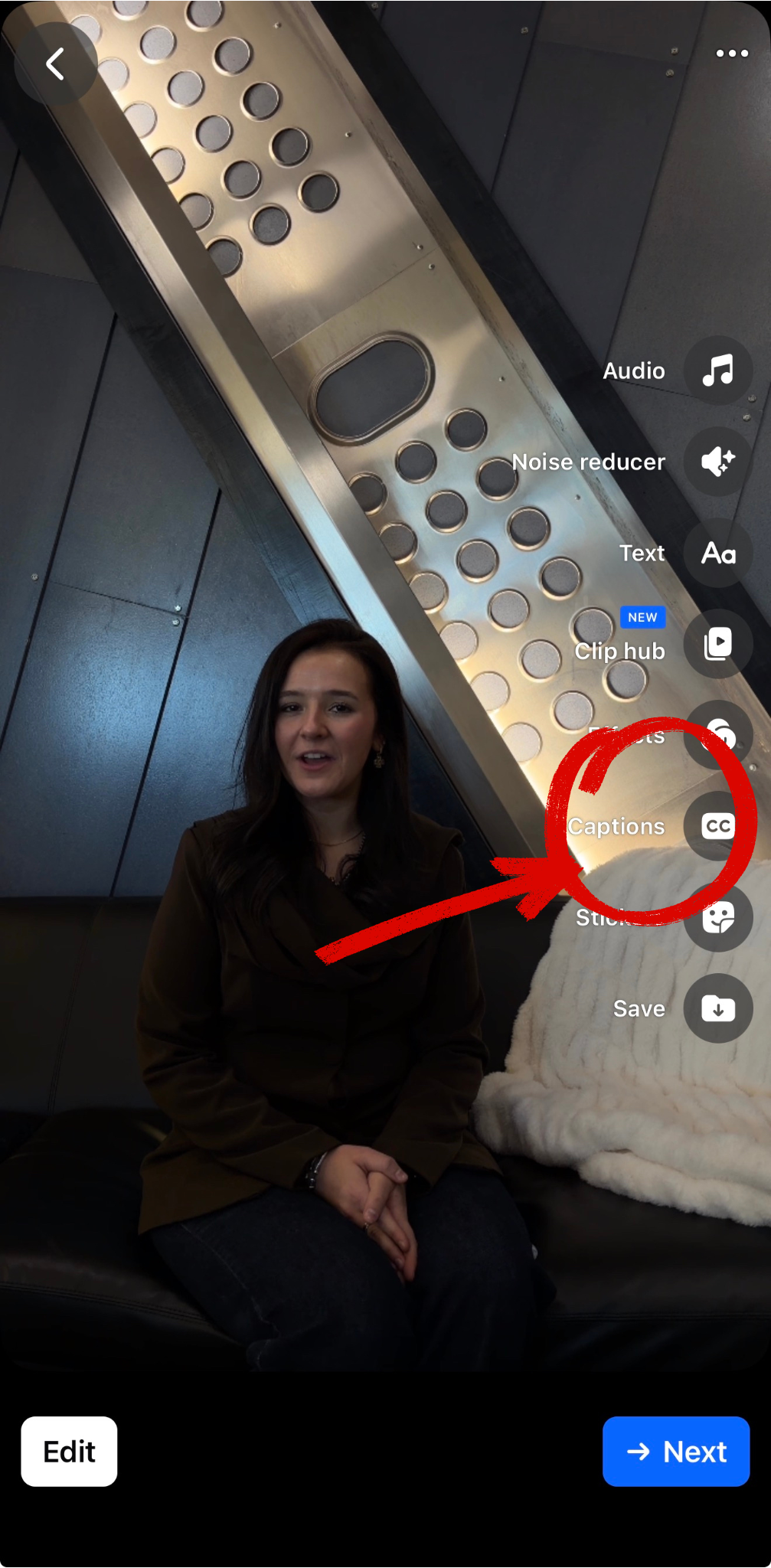
Facebook offers auto-captions and SRT file upload. The CC button is your entry point.

Upload & Open Video Settings
Start a new post, choose your video, and tap Video Settings to access the editing and accessibility options.

Select the Captions (CC) Icon
Tap the CC icon in the right-side toolbar. Options include: auto-generated captions, SRT file upload, or closed-captions-only mode.
For best quality: Generate an SRT from Microsoft Stream or YouTube's caption export, then upload it. This gives you fully reviewed, accurate captions.

Review & Post
Read through every caption line. Correct any errors. Tap Done and complete your post. Never skip the review step — auto-captions contain errors that change meaning.
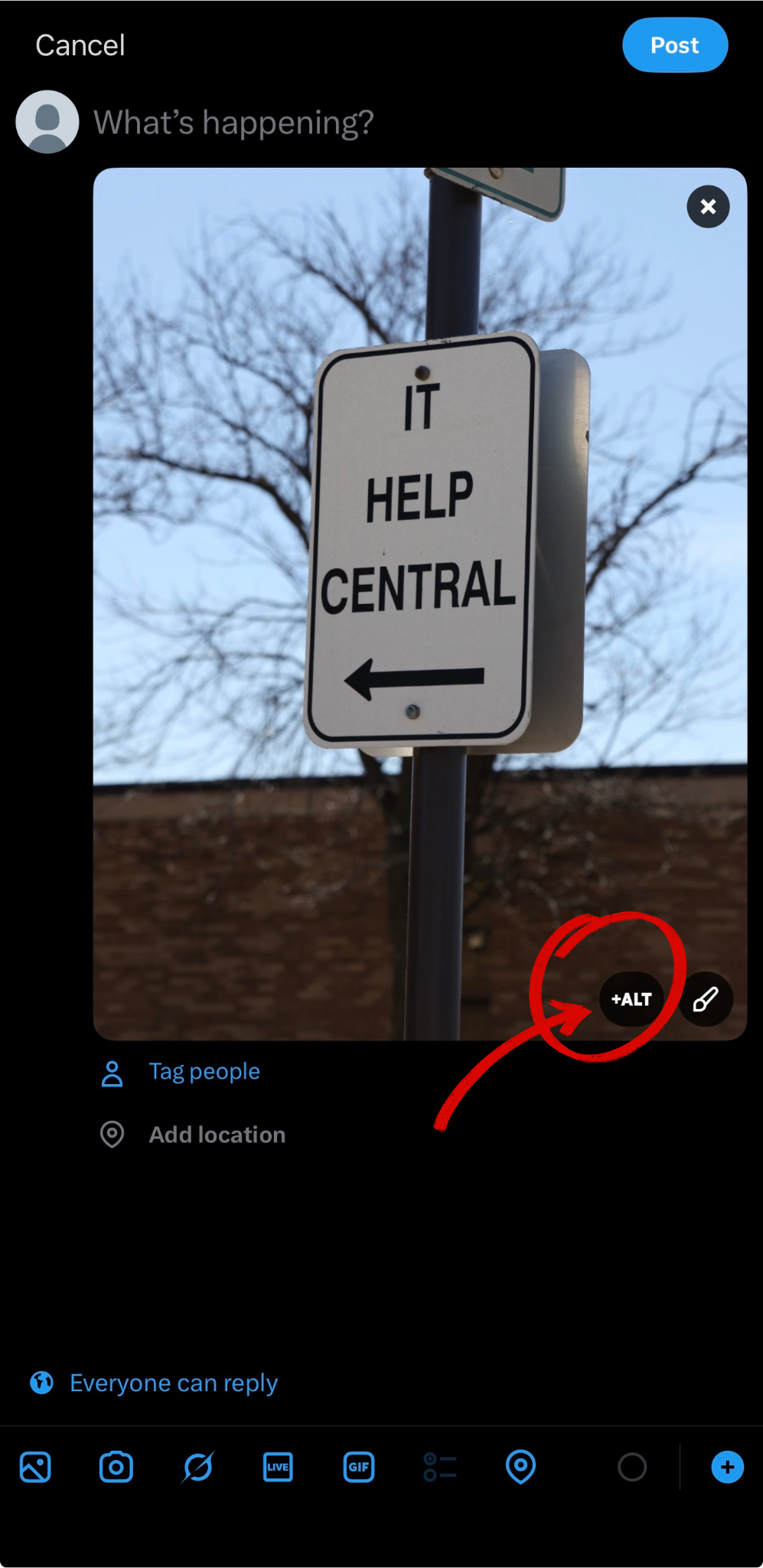
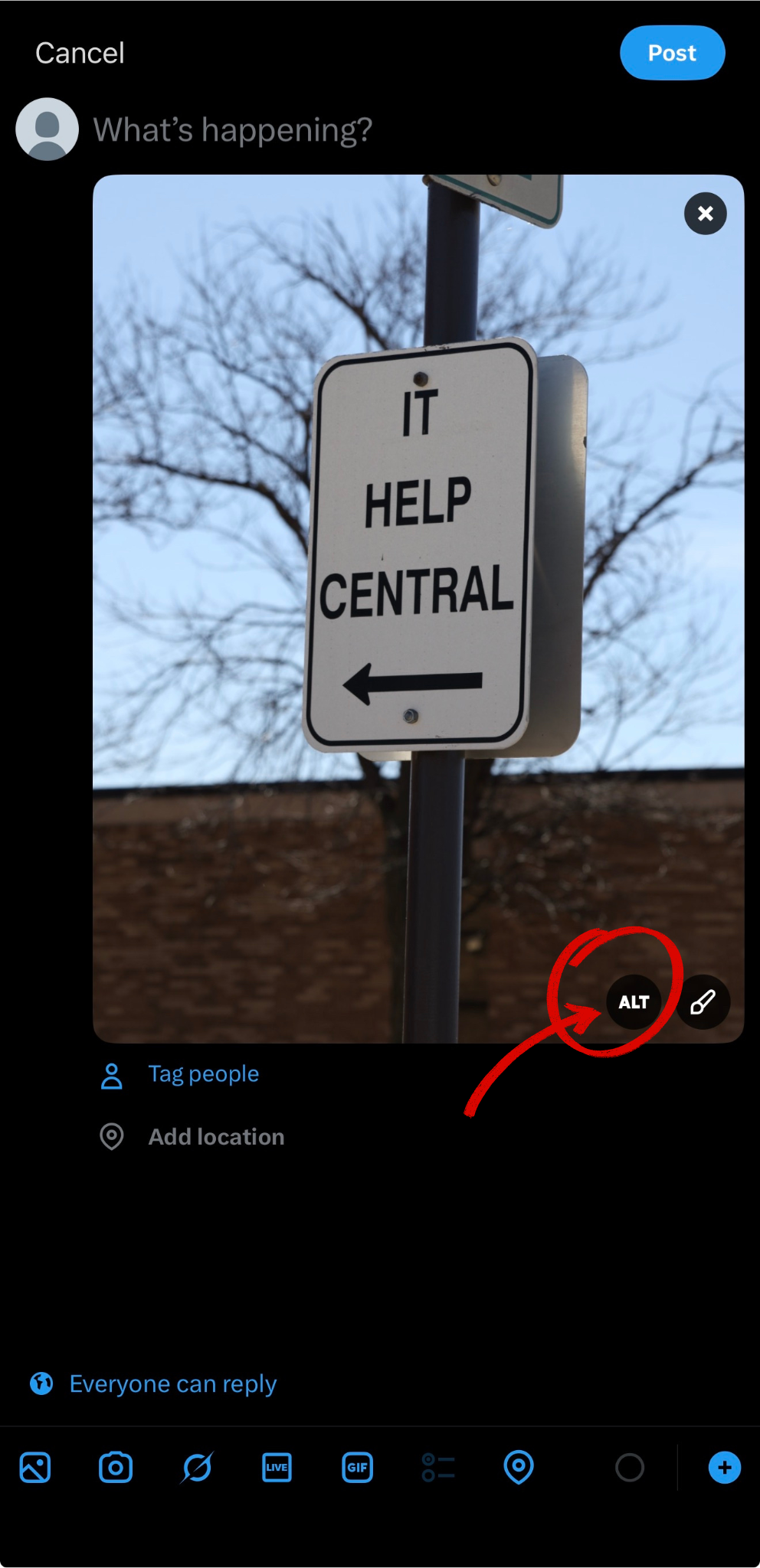
X has a dedicated +ALT button on every image you add to a post.

Tap the +ALT Button
After attaching an image, a +ALT button appears in the bottom-right corner of the image thumbnail. Tap it to open the alt text entry dialog. If you don't see the button, go to Settings → Accessibility and enable "Remind me to add image descriptions."

Write Your Description
X's prompt: "Good descriptions are concise, but present what's in your photos accurately enough to understand their context." Tap Sure to open the text field, write your description, and tap Done.

Confirm & Post
Once saved, the image thumbnail shows an ALT badge confirming it's been added. Complete your post text and tap Post.
⚠ Important: X does not automatically caption videos. You must prepare captions in advance before uploading.
The Workflow
Create captions in editing software before uploading: CapCut, Adobe Premiere, Canva, or export an SRT from YouTube or Microsoft Stream.
Burn-in (open) captions are the most reliable option — embedded directly into the video frame and display for every viewer, no settings required.
Upload the finished, captioned video file. The captions are already part of the video.
Open vs. Closed Captions on X
✅ Open (Burn-in) Captions
Text is baked into the video frames. Always visible. Works on X and every other platform. Recommended for X.
⚠ Closed Captions
Toggle-able by the viewer. Not reliably supported in the X mobile app even when enabled. Do not rely on them as your only captioning method on X.
Pro Tip: Enable the X accessibility reminder in Settings → Accessibility → "Remind me to add image descriptions."
Adding Alt Text to Images
Start a post and upload your image. On the Edit your photo screen, tap "Add alt text."
LinkedIn's prompt reads: "Text describing what's in the photo." Write a concise, meaningful description. Tap Done.
LinkedIn auto-generates descriptions — always customize them. AI descriptions often miss the professional context that matters on LinkedIn.
Extra layer: Add a brief image description directly in your post text or as a pinned first comment — helps users who may still benefit from context.
Adding Captions to Videos
Desktop: Select "video" under Start a Post. Upload your video. Toggle "Add auto-captions" and "Review captions" on.
Mobile: After uploading, tap the CC captions icon and toggle auto-captions on. Review for accuracy before posting.
Higher quality option: Upload an .SRT file using the "Select caption" option from Microsoft Stream or YouTube.
75% of LinkedIn video is watched on mute. Captions serve your entire audience, not just viewers with disabilities.
At-a-glance comparison of accessibility feature availability across all four platforms.
| Feature | X / Twitter | |||
|---|---|---|---|---|
| Image Alt Text | ✅ Manual + Auto (review required) | ✅ Manual + Auto (review required) | ✅ Manual via +ALT button | ✅ Manual + Auto (review required) |
| Video Auto-Captions | ✅ Reels & Stories | ✅ Videos | ❌ Must pre-caption | ✅ Desktop & mobile |
| SRT File Upload | ❌ | ✅ | ❌ | ✅ |
| Carousel Alt Text | ✅ Per image | ✅ Per image | ✅ Per image | ✅ Per image |
| Edit Alt Text After Posting | ✅ | ✅ | ✅ Via ⋯ → Edit | ✅ |
| Alt Text Reminder Prompts | ✅ Built-in | ✅ Built-in | ✅ Enable in Settings | ⚠ Limited |
Note: Platform interfaces update frequently. Always verify current steps in each platform's official help documentation before training others.
TTU's social media presence extends beyond the four core platforms. The same principles apply everywhere.
▶ YouTube
YouTube offers the most robust caption tools of any major platform. Auto-captions are generated for all videos and can be edited in YouTube Studio. You can also upload SRT, VTT, or SBV files.
Alt text for thumbnails: Currently limited. Use descriptive video titles and descriptions to compensate.
YouTube Help: Add subtitles and captions →Pinterest allows alt text on Pins. When creating a Pin, expand Advanced Settings and add an alt text description.
Video Pins: Pinterest does not offer native auto-captioning. Burn captions into video before uploading.
Pinterest Help: Accessibility →🦋 Bluesky & Mastodon
Both decentralized platforms have built-in alt text fields on image uploads. Bluesky prompts you to "Add alt text" for every attached image. Mastodon has a dedicated Describe for visually impaired users field.
Bluesky Accessibility Info →📸 Snapchat
Snapchat's native accessibility features for alt text and captions are limited. For Stories intended for a broad audience, use the Captions tool within Snapchat's editor to add visible text overlays.
Snapchat Accessibility Support →💬 Threads
Meta's Threads platform supports alt text on images. Tap the image after attaching it and select "Add Alt Text." As a Meta product, Threads follows similar workflows to Instagram.
Threads Help Center →📋 Social Media Management Software
Many departments use tools like Hootsuite, Sprout Social, Buffer, Loomly, or SprinklR to publish across channels. Accessibility features built into native platforms may not be available or passed through in management software.
What to Check in Your Tool
When Your Tool Falls Short
If your management software does not support alt text or caption upload, you have two options:
Best practice: Contact your management software vendor and ask about their accessibility roadmap. Document gaps and escalate.
When platforms don't provide a built-in solution, these strategies go beyond the checkbox.
🎬 Pin a "Screenplay Comment" on Videos
After posting a video, immediately add a pinned first comment containing an audio description and transcript. Especially valuable on X, which has no auto-captioning.
📝 Long-Form Image Description in Caption
For complex images — infographics, event flyers, charts — include a full text version in the post caption below a visual break line.
🔗 Link to a Full Transcript Page
For webinars, presentations, or long announcements, post a link to a full transcript on your website. This also benefits SEO and provides a permanent, searchable record.
🗂️ Carousel Text Summary in Caption
When posting carousels, write a numbered text summary of every slide in the caption. Users who cannot see the images get the same information.
Captions serve users who are Deaf or hard of hearing. Audio descriptions serve users who are blind or low vision. Transcripts serve both — and also help users with cognitive disabilities, non-native language speakers, and people in sound-sensitive environments.
📖 Audio Description
A spoken narration of essential visual information — actions, on-screen text, setting — during natural audio pauses.
📄 Transcript
A full text version of all spoken audio plus descriptions of important visual content. Unlike captions, transcripts can be read at any pace, searched, and translated.
Post as a pinned comment, a linked webpage, or a Google Doc linked in your bio or caption.
🛠️ Tools
WCAG Connection: WCAG 2.1 Success Criteria 1.2.1 (Audio-only/Video-only), 1.2.2 (Captions), and 1.2.5 (Audio Description) apply to pre-recorded media on websites. These same principles are sound standards to apply to social media content.
Official Platform Help
⚠ Platform interfaces change regularly. Before training others or updating materials, always verify steps against current official help documentation.
Accessible social media ensures that everyone in our community can participate in the conversation. A few extra seconds to write meaningful alt text, review auto-captions, and format hashtags correctly creates an experience that works for everyone.
Pre-Post Checklist
Thank You!
Questions?